Aigol TMS User Guide [EN]
Below are the instructions for ordering and tracking shipments using Aigol’s TMS system via the web interface.
Support: info@aigol.eu
Contacts:
eero.valovirta@aigol.eu 📞 +358 40 574 1358
tapio.teppo@aigol.eu 📞 +358 40 737 1471
Aigol TMS Käyttöohje [FI]
Alla ohjeet kuljetusten tilaamiseen ja seurantaan Aigolin TMS järjestelmän web-käyttöliittymän avulla.
Käyttötuki: info@aigol.eu
Yhteyshenkilöt:
eero.valovirta@aigol.eu 📞 +358 40 574 1358
tapio.teppo@aigol.eu 📞 +358 40 737 1471
Content
2.1. Menu
2.2. Booked Shipments
2.3. Invoiced Shipments
2.4. Data Explorer
2.5. Dashboard
3. Creating a New Shipment (Create button)
3.1. Sender and Recipient
3.2. Goods and Additional Services
3.3. Instructions, Pickup & Delivery Times, and Print Settings
3.4. Customs Information and File Attachments
3.5. Payer and Transportation Services with Price Information
4. Summary Page Before Sending
6. Settings
General Settings
Address Book
API Keys
Users
Roles
Integrations
Printers
Webhooks
Sisällysluettelo
2.1. Menu
2.2. Booked shipments
2.3. Invoiced shipments
2.4. Data Explorer
2.5. Dashboard
Uuden lähetyksen luominen (Create-painike)
3.1. Lähettäjä ja vastaanottaja
3.2. Tavarat ja lisäpalvelut
3.3. Ohjeet, nouto- ja toimitusajat sekä tulostusasetukset
3.4 Tullaustiedot ja liitetiedostojen liittäminen
3.5. Rahdin maksaja ja kuljetuspalvelut hintatietoineen
General – Yleiset asetukset
Address book – Osoitekirja
API keys
Users – Käyttäjät
Roles – Roolit
Integrations - Integraatiot
Printers - Tulostimet
Webhooks

1. click Login button at aigol.eu home page
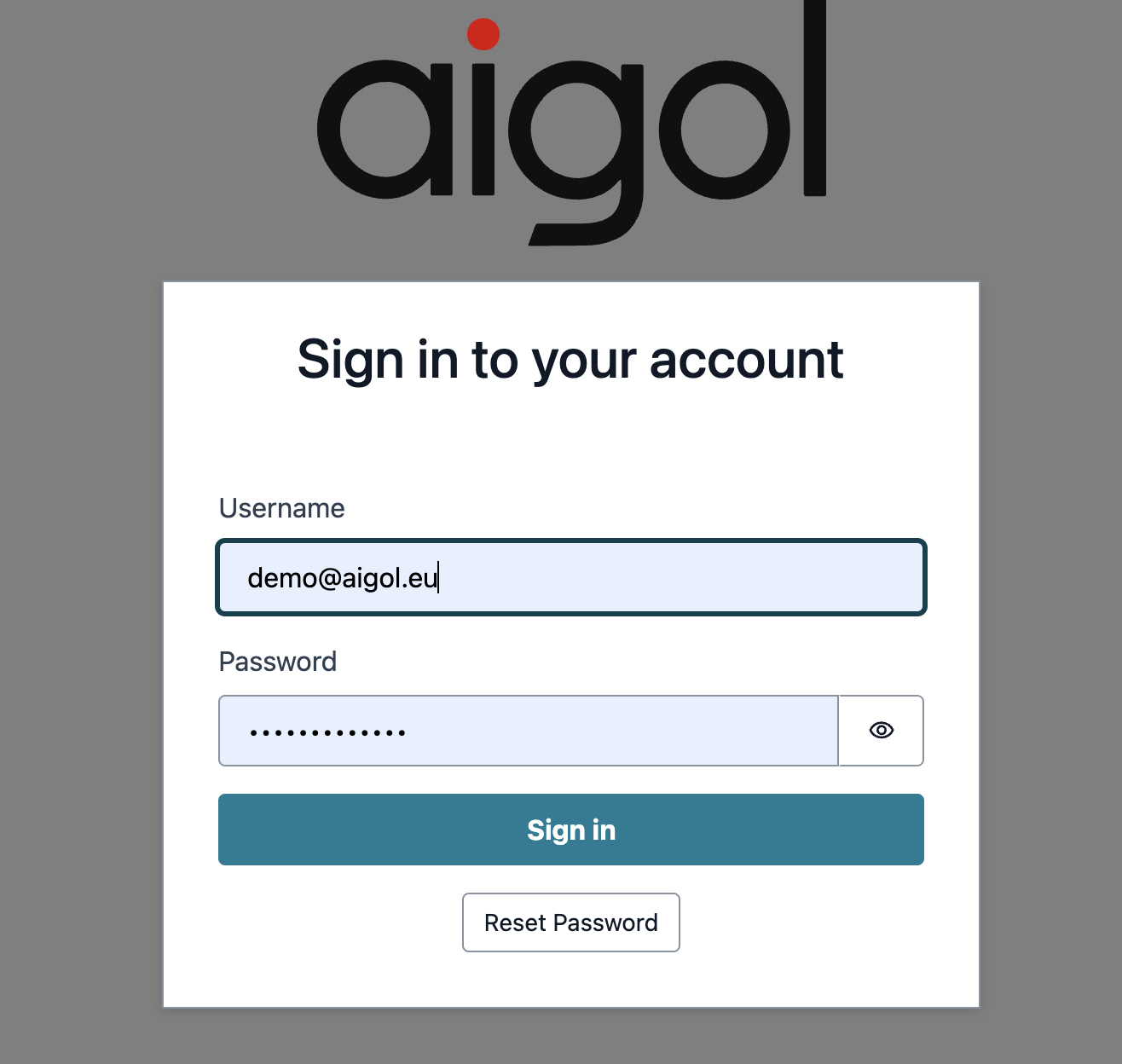
2. Sign in with your username and password
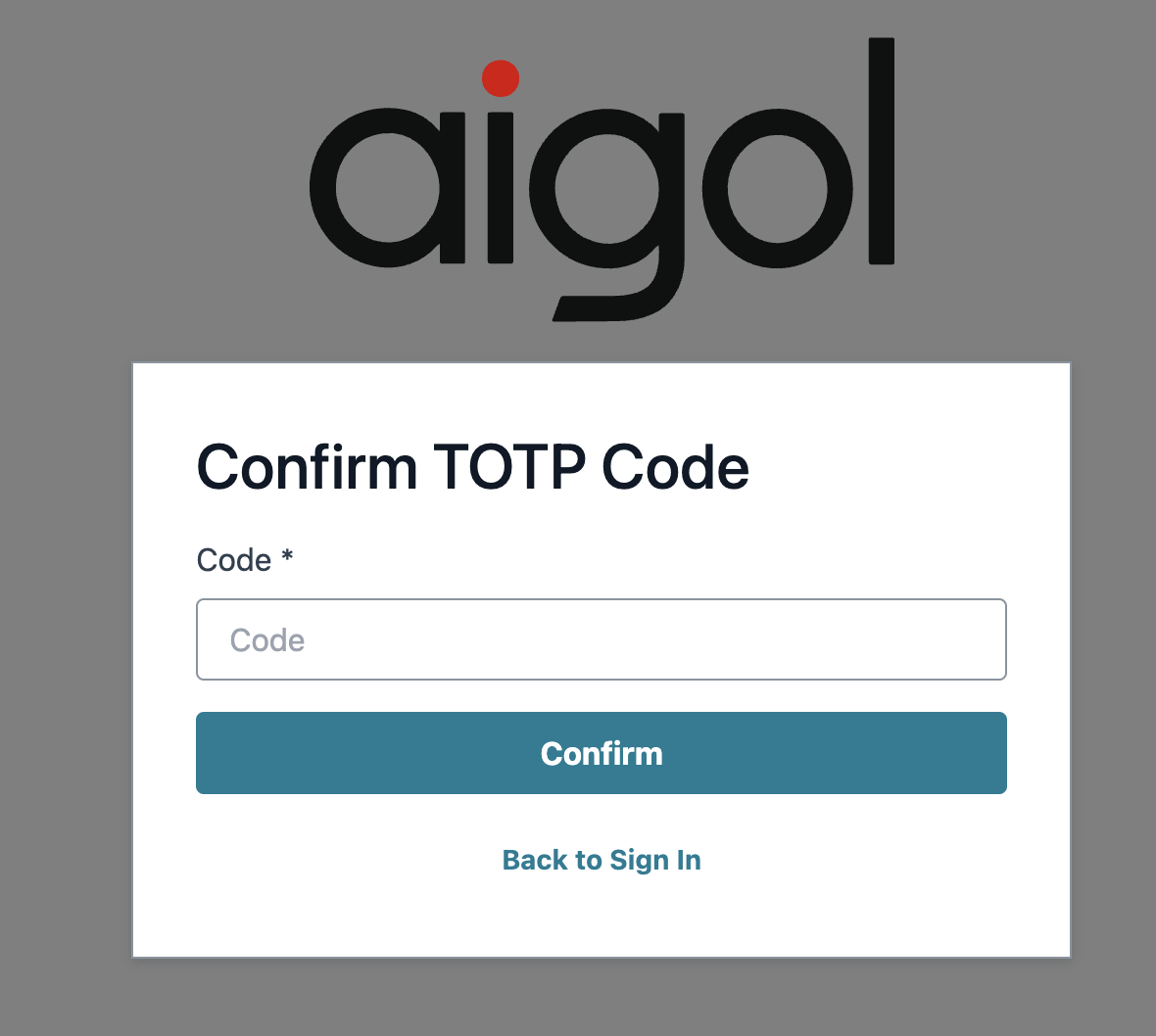
3. Check your email to get login pin code
2. Shipment Monitor
2.1 Menu
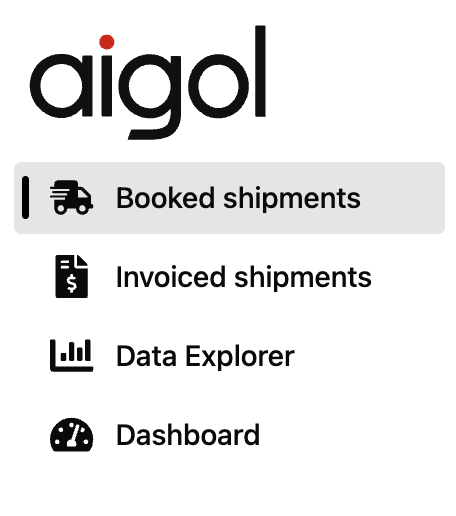
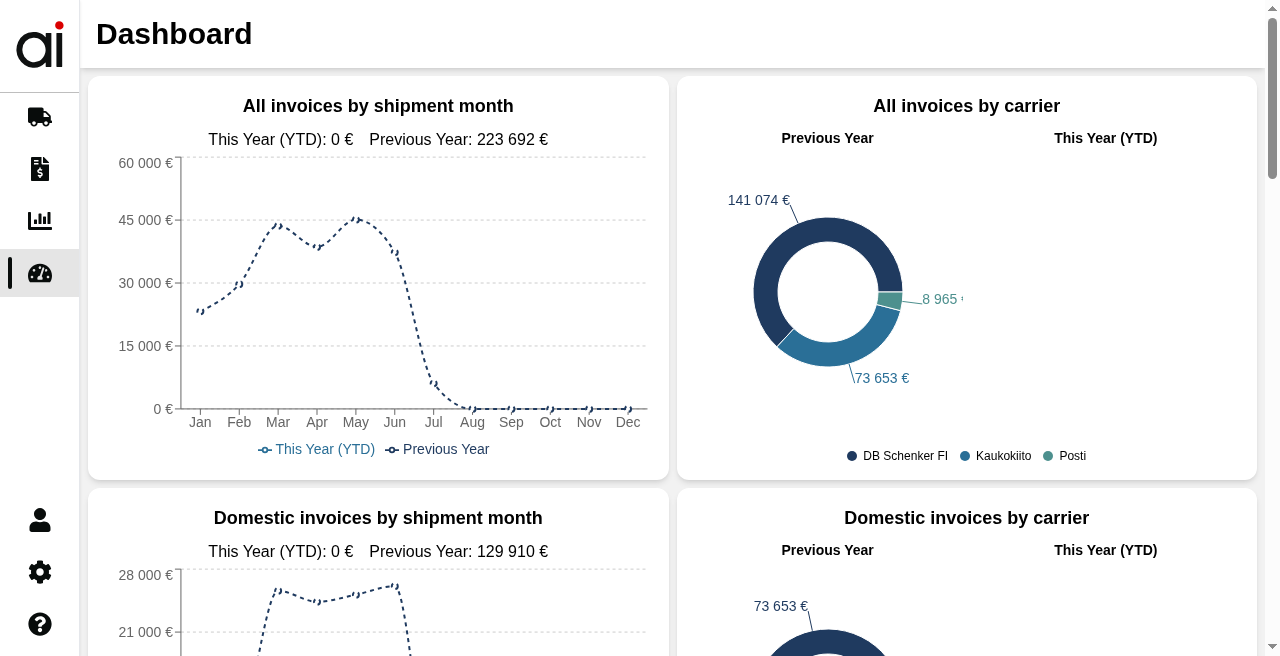
The menu bar is located on the left side of the screen, and its contents depend on the scope of your Aigol subscription:
Booked shipments – created transport orders, with the option to create new ones
Invoiced shipments – statistics based on transport invoices
Data explorer – reporting tool for invoice statistics
Dashboard – predefined KPI view
2. Shipment Monitor
2.1 Menu
Menupalkki sijaitsee ruudun vasemmassa reunassa ja sisältö riippuu Aigol-tilauksen laajuudesta:
Booked shipments – tehdyt kuljetustilaukset, mahdollisuus luoda uusia tilauksia
Invoiced shipments – kuljetuslaskujen statistiikka
Data explorer – raportointityökalu laskutusstatistiikkaan
Dashboard – ennalta määritelty KPI-näkymä
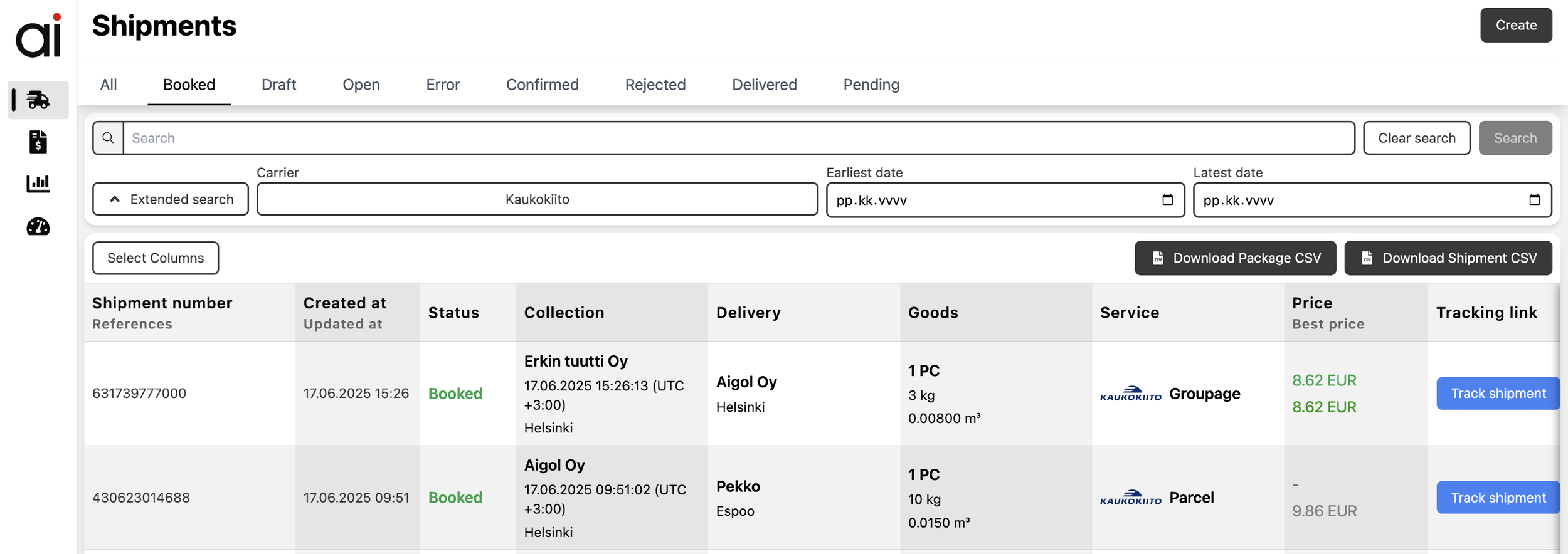
2.2 Booked shipments
You will see a list of all created transport orders.
Search options: e.g., by shipment number
Filters: date, carrier, etc.
Column management: via the Select Columns button
Visible fields:
Shipment number – the shipment identifier
Status – Booked, Pending, Error, etc.
Collection / Delivery – sender and recipient
Goods – quantity, weight, and volume of the shipment
Service – selected transport service
Payer – freight payer
Price – contract price and the cheapest available option
Tracking link – link to the carrier’s tracking page
Actions:
Download reports in CSV format (Shipment CSV, Package CSV)
Open detailed shipment information by clicking a row (Detail view)
Create a new shipment using the Create button
2.2 Booked shipments
Näet listan kaikista tehdyistä kuljetustilauksista
Hakutoiminnot: esim. lähetyksen numerolla
Rajaus: päivämäärä, kuljetusliike jne.
Sarakkeiden hallinta: Select Columns -painikkeella
Näkyvät kentät:
Shipment number – lähetyksen numero
Status – Booked, Pending, Error jne.
Collection / Delivery – lähettäjä ja vastaanottaja
Goods – lähetyksen määrä, paino, tilavuus
Service – tilattu kuljetuspalvelu
Payer – rahdin maksaja
Price – sopimushinta ja edullisin vaihtoehto
Tracking link – linkki kuljetusliikkeen lähetysseurantaan
Toiminnot:
Lataa raportit CSV-muodossa (Shipment CSV, Package CSV)
Avaa lähetyksen tarkemmat tiedot klikkaamalla riviä (Detail view)
Luo uusi lähetys Create-painikkeella
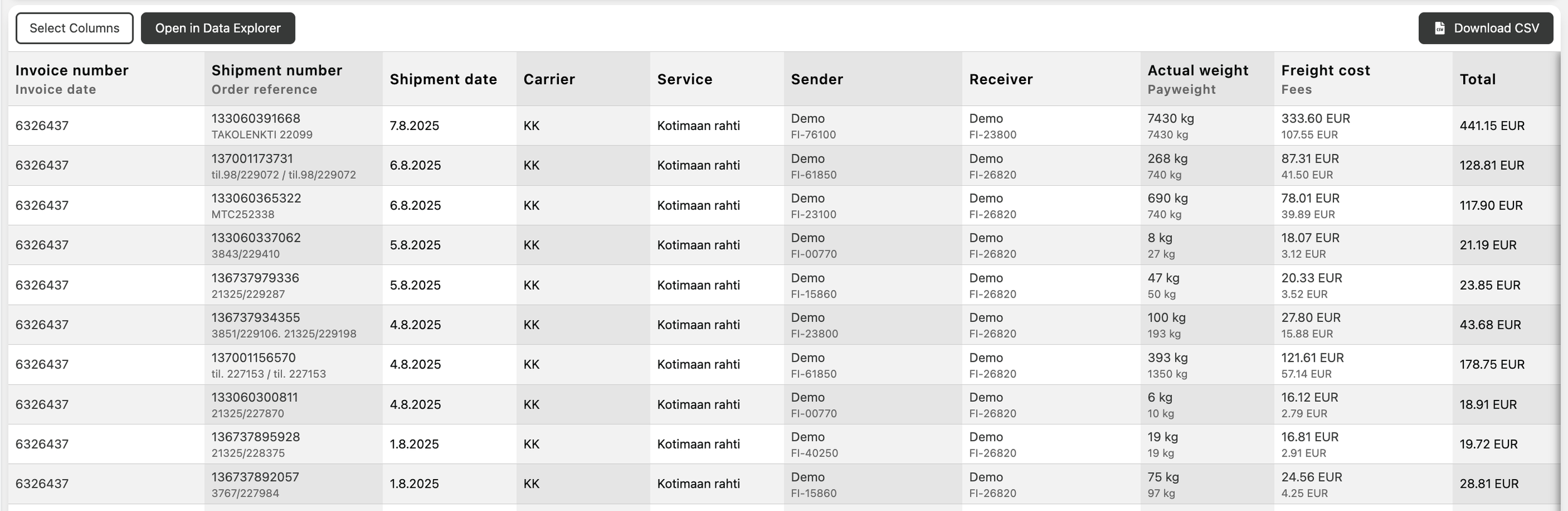
2.3 Invoiced Shipments
View of invoiced transport events
Includes options to search, filter, and download the data in Excel / CSV format.
2.3 Invoiced Shipments
Laskutettujen kuljetustapahtumien näkymä
Mahdollisuus hakea, suodattaa ja ladata tiedot Excel / CSV-muodossa
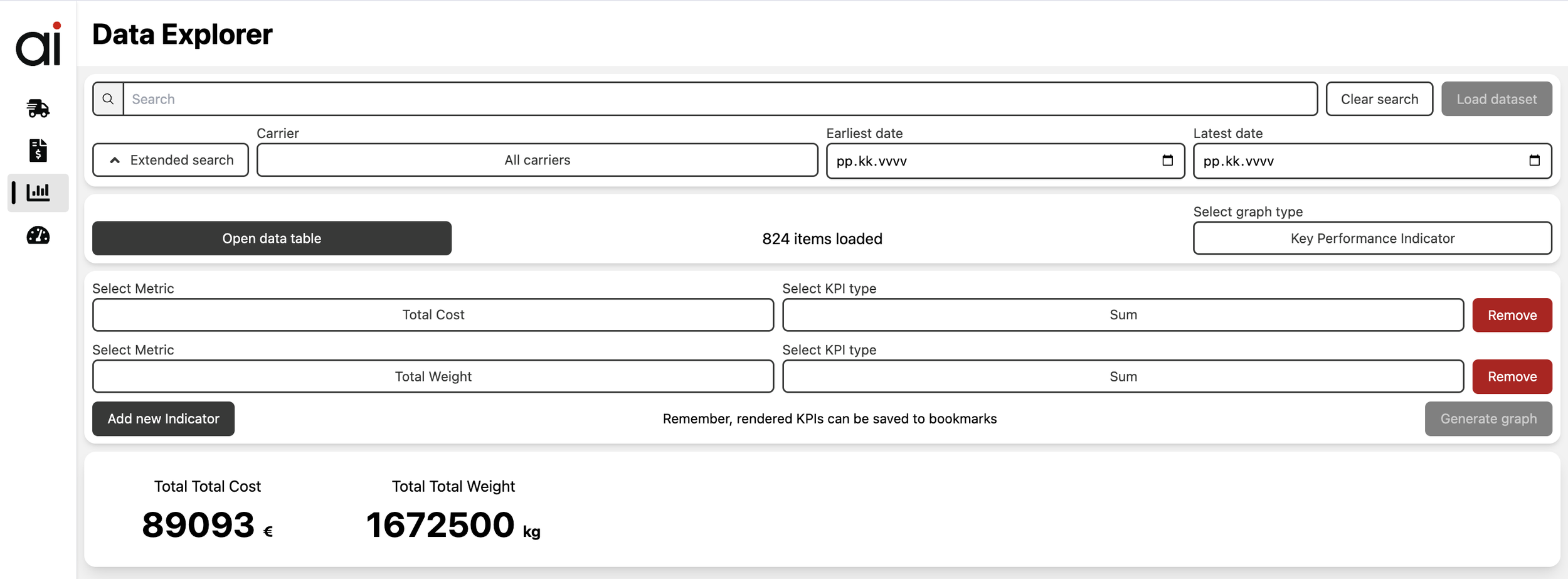
2.4 Data Explorer
A reporting tool for analyzing invoiced transport events
Allows you to generate graphs and filter data using various criteria.
2.4 Data Explorer
Raportointityökalu laskutettujen kuljetustapahtumien analysointiin
Mahdollisuus muodostaa graafeja ja suodattaa dataa eri kriteerein
3. Create new shipment
3.1 Sender and receiver
Select the recipient: company or private individual.
Enter the name, address, postal code, country, and contact details.
Phone number format: +xxxxxxxxxxx (no spaces, dashes, or parentheses).
You can save the address to your address book (Save as new).
The details can also be retrieved from the address book or from a saved template (a shipment template with prefilled information).
You can save filled form as Template by clicking the Save as Template bottom of the page
Templates can be seen and deleted in Settings - Templates
3. Uuden lähetyksen luominen - Create painike
3.1 Lähettäjä ja vastaanottaja
Valitse vastaanottaja: yritys vai yksityishenkilö
Syötä nimi, osoite, postinumero, maa ja yhteystiedot
Puhelinnumero muodossa:
+xxxxxxxxxxx(ei välilyöntejä, viivoja, sulkuja)Voit tallentaa osoitteen osoitekirjaan (Save as new)
Tiedot voi hakea myös osoitekirjasta tai tallennetusta templatesta (lähetyksen mallipohja, jossa lomakkeen tiedot esitäytettynä)
Täytetyn lomakkeen voi tallentaa templateksi sivun alalaidassa olevasta Save as Template -painikkeesta
Templatet voi nähdä ja poistaa Settings asetuksissa kohdassa Templates

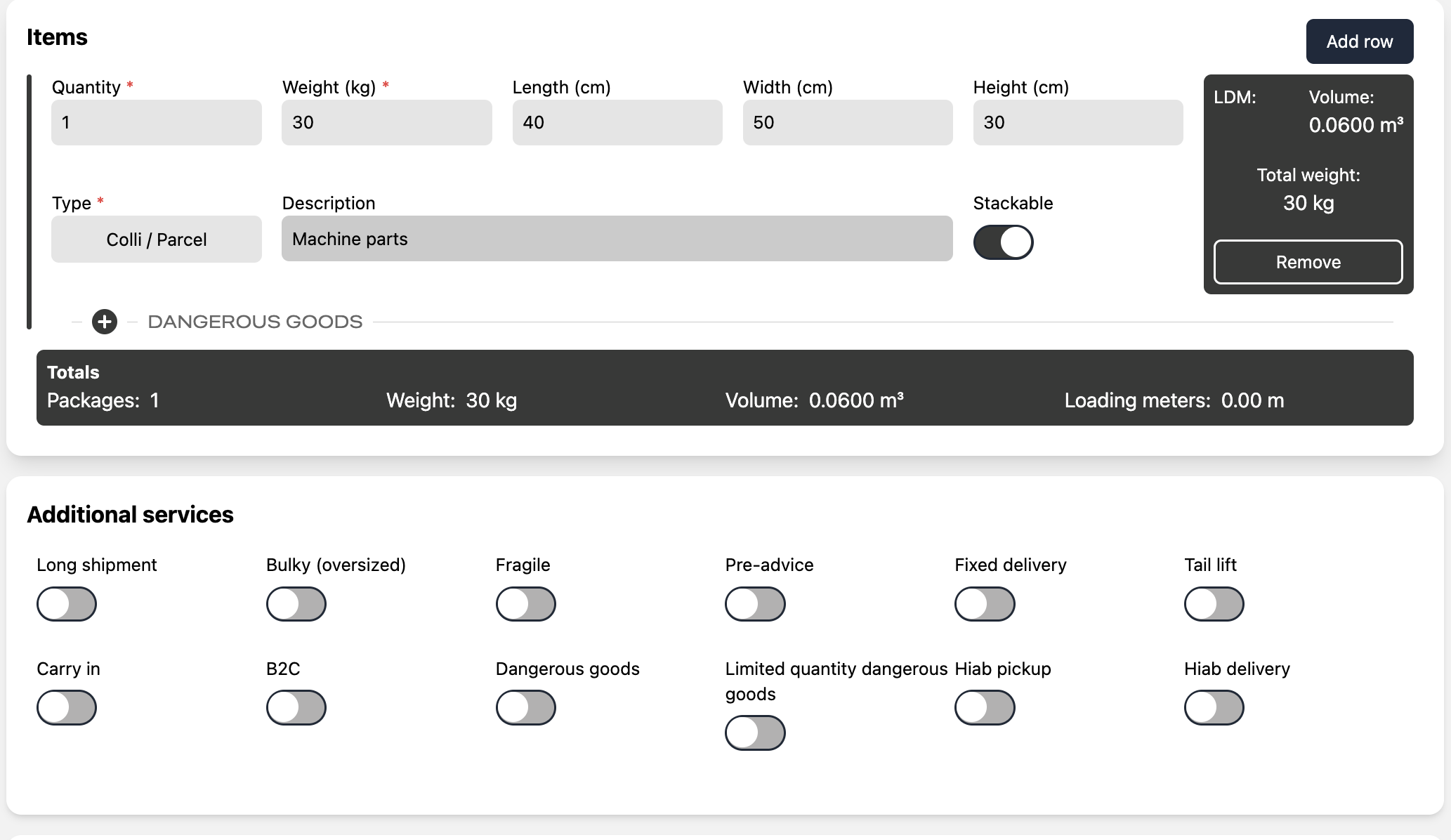
3.2 Goods to be sent and additional services
Enter the package details: quantity, weight, dimensions, description, and stackability (Stackable).
The quantity field makes it easy to add multiple identical packages.
Add dangerous goods information if needed
Additional services:
Tail lift
Fixed delivery
Dangerous goods / Limited quantity
Long shipment
Bulky shipment
Fragile
Pre-advice (call before delivery)
Carry-in
B2C delivery
Hiab pickup
Hiab delivery
etc.
3.2 Lähetettävät kollit ja lisäpalvelut
Syötä kollien tiedot: määrä, paino, mitat, kuvaus, päällelastattavuus (Stackable)
Quantity-kenttä helpottaa identtisten kollien lisäämistä
Lisää tarvittaessa vaarallisten aineiden tiedot
Lisäpalvelut:
Perälautapurku (Tail lift)
Aikataulutettu jakelu (Fixed delivery)
Vaaralliset aineet (Dangerous goods, Limited quantity)
Pitkä tavara (Long shipment)
Ylisuuri lähetys (Bulky shipment)
Herkästi rikkoutuva (Fragile)
Soitto ennen toimitusta (Pre-advice)
Sisäänkanto (Carry-in)
Kuluttajatoimitus (B2C)
Hiab nouto (Hiab pickup)
Hiab jakelu (Hiab delivery)
jne
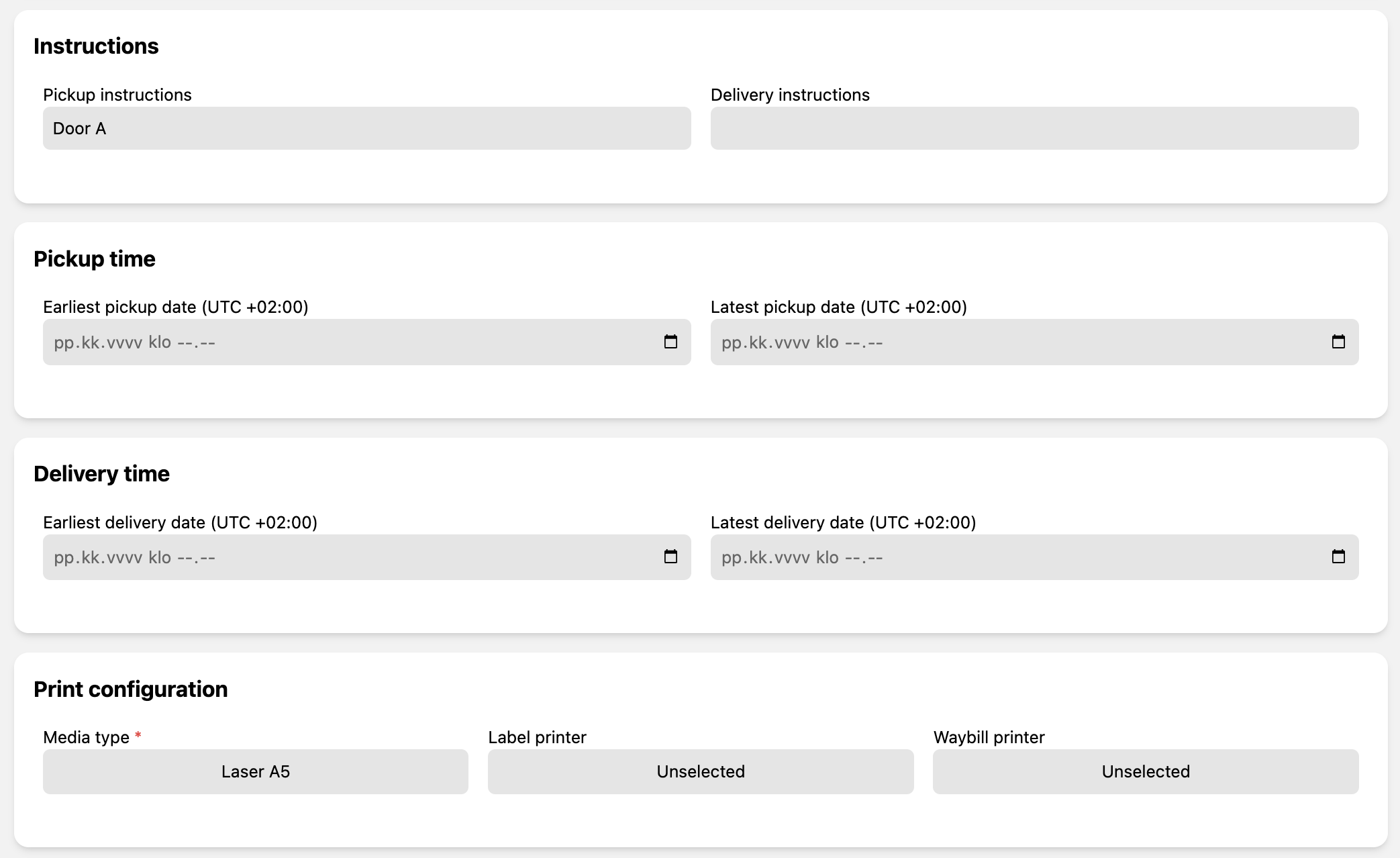
3.3 Delivery instructions, Pickup & Delivery Times, and Print Settings
Add transport instructions in the Instructions field
Enter the desired pickup and delivery times (Pickup time, Delivery time)
If you select a fixed delivery time, remember to also add the Fixed delivery additional service
Choose the print settings
3.3 Kuljetusohjeet, nouto- ja toimitusajat sekä tulostusasetukset
Lisää kuljetusohjeet kohtaan Instructions
Syötä haluttu nouto- ja toimitusaika (Pickup time, Delivery time)
Jos valitset aikataulutetun jakelun, muista lisätä myös lisäpalvelu Fixed delivery
Valitse tulostusasetukset
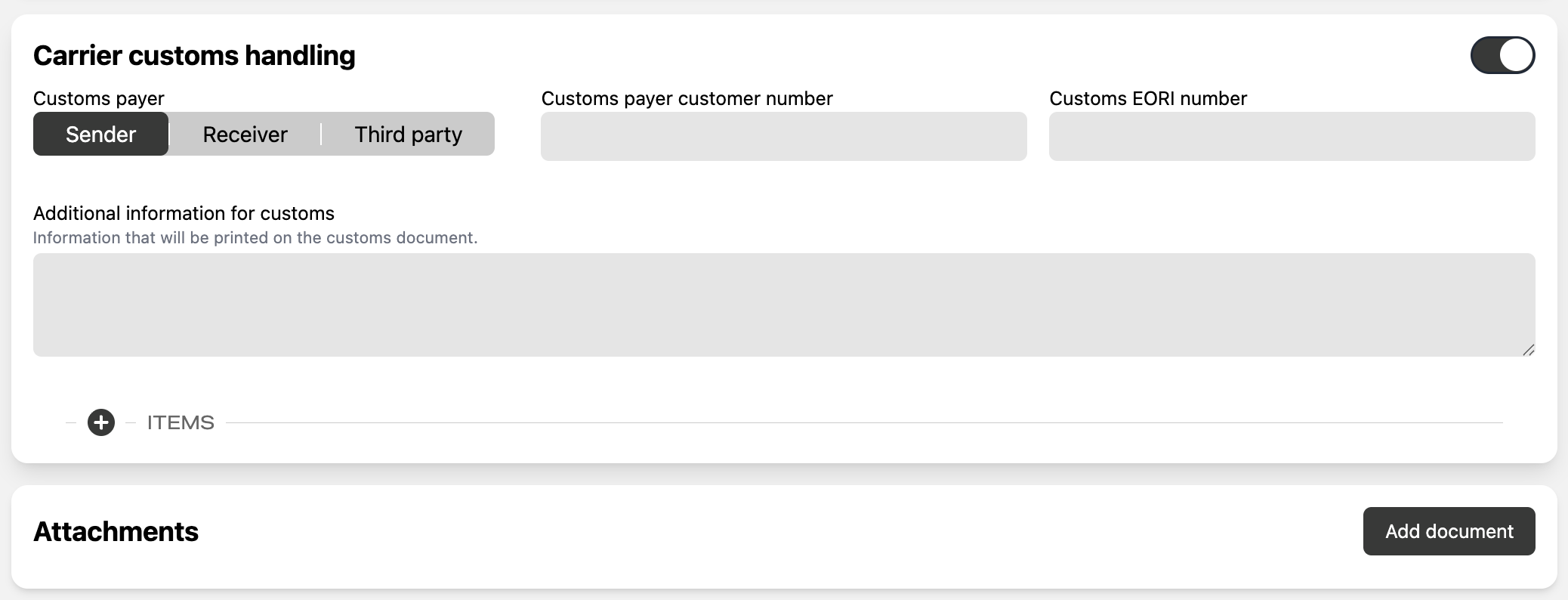
3.4 Customs and Adding Attachments
Enter the customs payer, the payer’s contract number, and the EORI code
Add any other information required by the carrier
Upload the attachment files (PDF)
3.4 Tullaus ja liitteiden lisääminen
Syätä tullauksen maksaja, tullauksen maksajan sopimusnumero ja EORI koodi
Lisää muu tarvittava tieto kuljetusliikkeelle
Lisää liitetiedostot (PDF)
3.5 Freight Payer and Transport Services with Pricing Information
Set the Payer:
Your company – the sender pays (prices are shown)
Receiver – the recipient pays (prices are not shown)
Third Party – a third party pays
Define whether the shipment is outgoing or incoming (Outbound / Inbound)
Transport option statuses:
valid – option available
invalid – not available with the given details
incomplete – required information is missing
Click Fetch prices to retrieve your contract rates
Select the desired transport service and contract number
Continue to the summary view using the Next button

3.5 Rahdin maksaja ja kuljetuspalvelut hintatietoineen
Määritä maksaja (Payer):
Oma yrityksesi – tilauksen tekijä maksaa (näytetään hinnat)
Receiver – vastaanottaja maksaa (hintoja ei näytetä)
Third Party – kolmas osapuoli maksaa
Määritä onko tilaus lähtevä vai saapuva (Outbound / Inbound):
Kuljetusvaihtoehtojen statukset:
valid – vaihtoehto mahdollinen
invalid – ei mahdollinen annetuilla tiedoilla
incomplete – tietoja puuttuu
Klikkaa Fetch prices hakeaksesi sopimushinnat
Valitse haluttu kuljetuspalvelu ja sopimusnumero
Jatka Next-painikkeella yhteenvetonäkymään
4. Summary page prior to booking
You will see a summary of the sender, recipient, package details, dimensions, and weights
The selected transport service, contract price, and alternative prices are also displayed
If needed, you can go back and correct the information
Press Submit to send the order and receive the labels, waybill, and other documents
4. Summary sivu ennen lähetystä
Näet yhteenvedon lähettäjästä, vastaanottajasta, kollitiedoista, mitoista ja painoista
Näkyvissä myös valittu kuljetuspalvelu, sopimushinta ja vaihtoehtoiset hinnat
Tarvittaessa voit palata taaksepäin korjaamaan tietoja
Paina Submit lähettääksesi tilauksen ja saadaksesi osoitetarrat, rahtikirjan ja muut asiakirjat
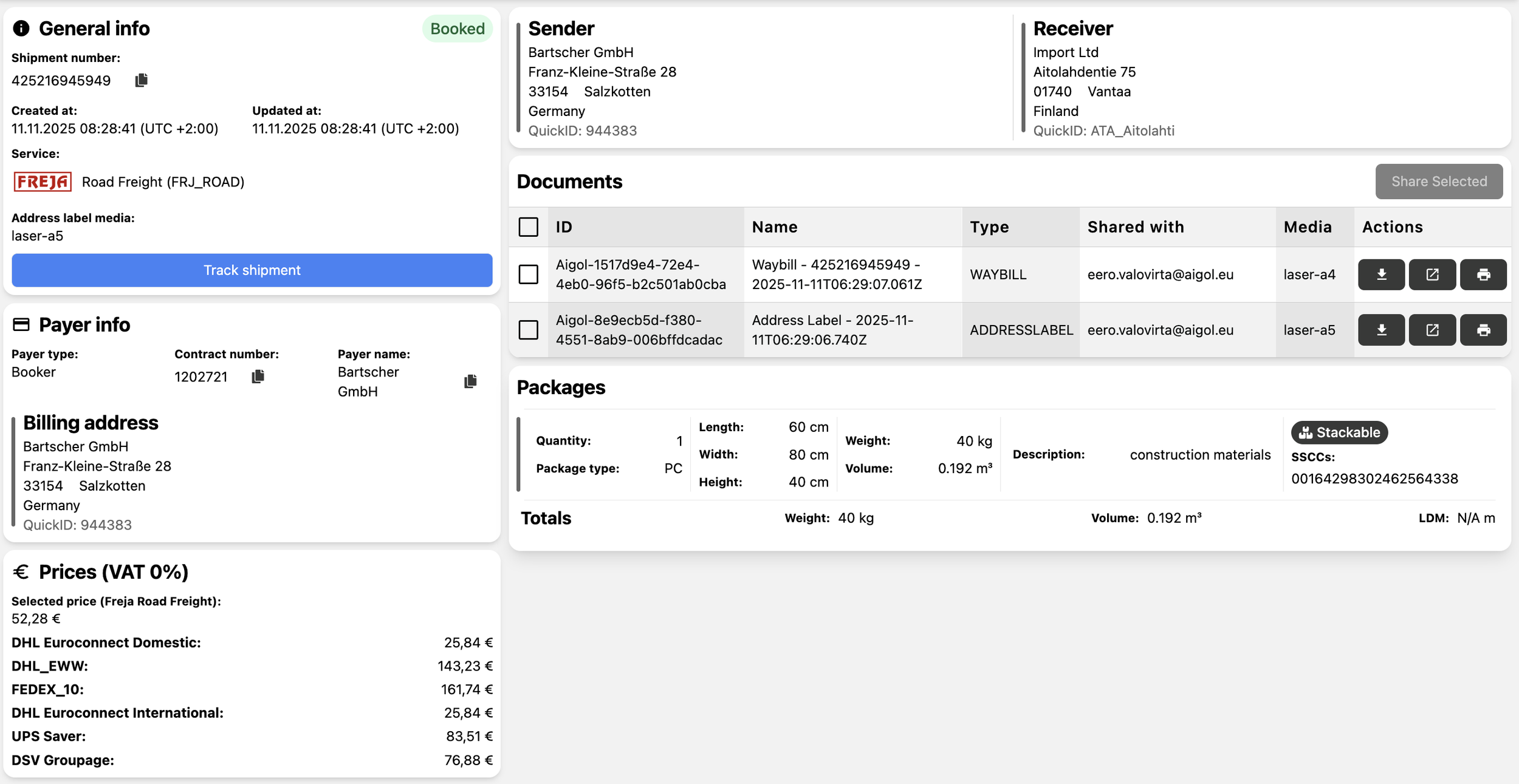
5. Shipment details page
By clicking an individual shipment in the Shipment Monitor (section 2.2), a detailed view opens:
General info – service, timestamps, status
Sender / Receiver – sender and recipient details
Payer info – freight payer information
Prices – prices for different transport options
Packages – dimensions and weights
PDFs – downloadable labels, waybills, and documents
👉 The Track shipment button opens the carrier's tracking link.
👉 You can create a copy by selecting New shipment from this.
👉 You can send documents (address labels, waybills etc) by selecting the documents and clicking Share selected and typing the receiver email address
5. Lähetysten tarkemmat tiedot
Klikkaamalla yksittäistä lähetystä Shipment Monitorissa (kohta 2.2) avautuu tarkempi näkymä:
General info – palvelu, aikaleimat, status
Sender / Receiver – lähettäjän ja vastaanottajan tiedot
Payer info – rahdin maksajan tiedot
Prices – hinnat eri kuljetusvaihtoehdoille
Packages – mitat ja painot
PDFs – osoitetarrat, rahtikirjat ja asiakirjat ladattavissa
👉 Track shipment -painikkeella avautuu kuljetusliikkeen seurantalinkki
👉 Voit luoda kopion valitsemalla New shipment from this
👉 Voit lähettää dokumentit valitsemalla ne ja painamalla Share selected painiketta ja antamalla vastaanottajan sähköpostiosoitteen
6. Settings
Open Settings by clicking the icon in the bottom-left corner of the Aigol interface.
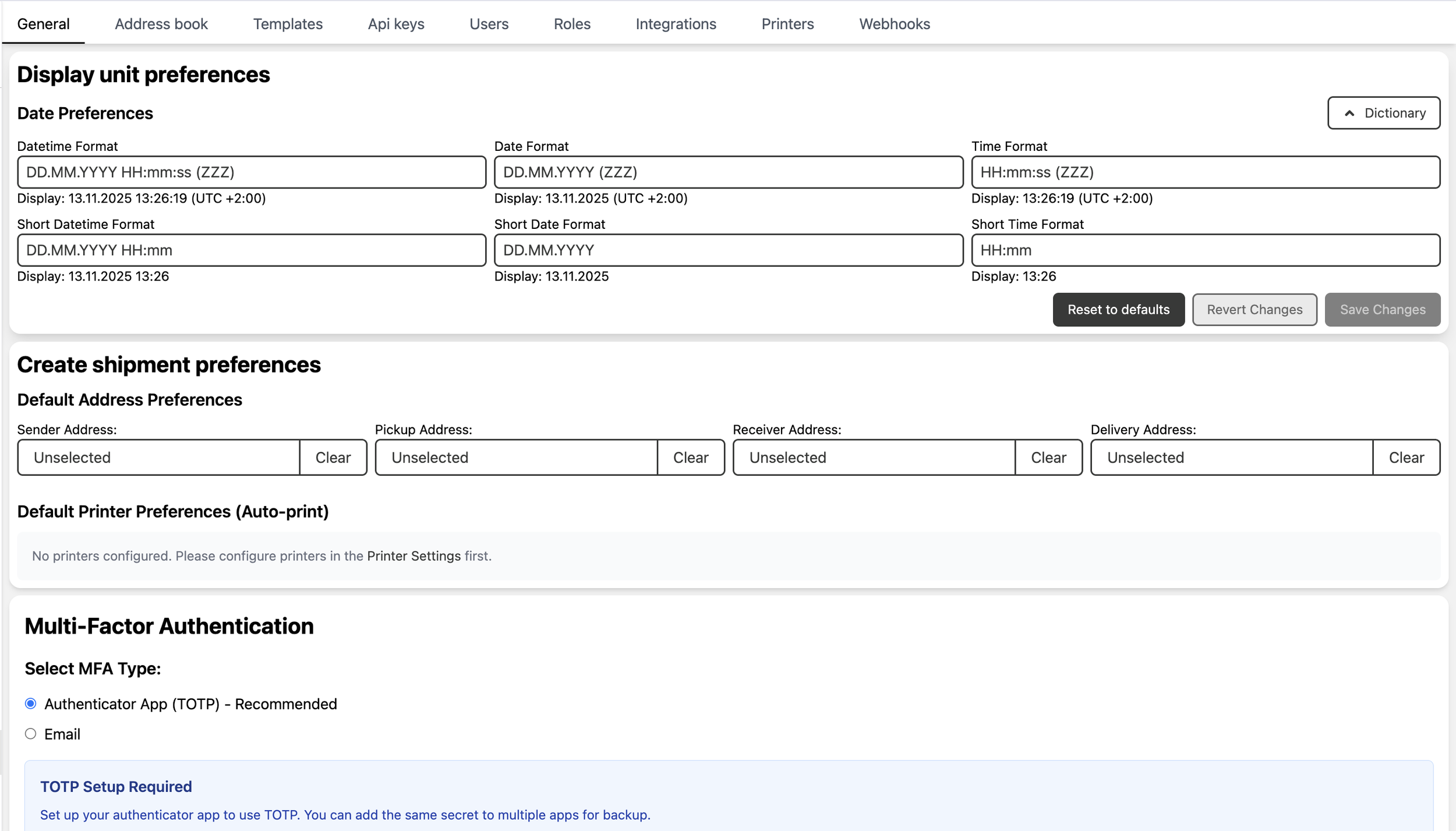
General Settings
Select your preferred date and time formats (Display Unit Preferences).
Set a default address and contact information for new shipments if desired (Default address preferences).
Configure default printers and auto-printing (e.g., for labels).
Set the two-factor authentication method (email or authenticator app).
Address Book
View your saved addresses and quick-search entries
Actions:
Save new address – add a new entry
Edit – modify
Delete – remove
Templates
View and delete your saved shipment templates (sender, recipient, freight amount, printers, etc.)
New templates can be saved during the shipment creation process (Create shipment)
API Keys
View the API keys currently used by the service.
Users
Manage user accounts and their roles.
Use the Create button to add a new user.
Roles
Create roles and define permissions.
Use the Create button to add a new role.
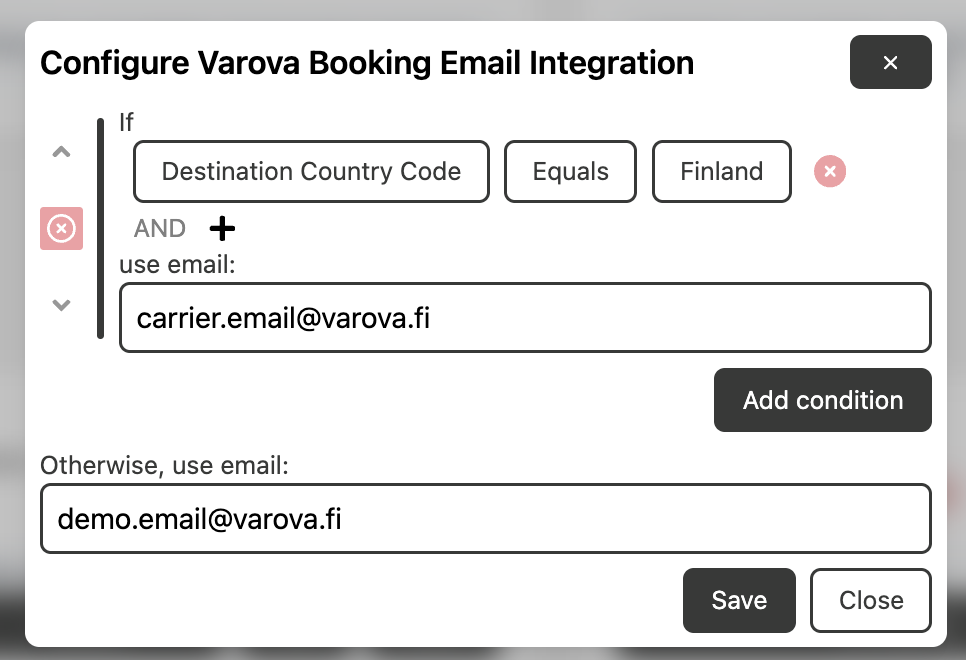
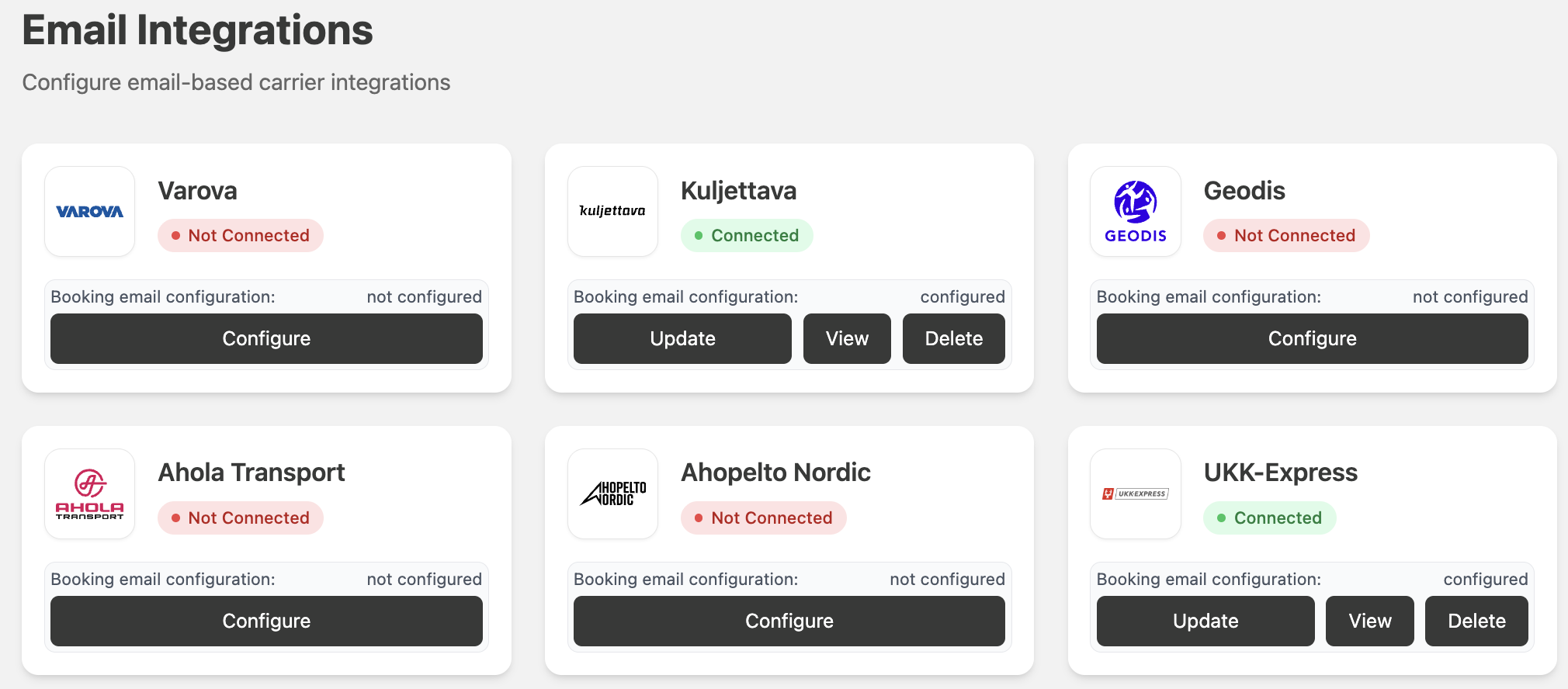
Integrations
See which carriers are connected via API or email orders.
The email order address can be changed if needed.
The email can be routed to a desired address depending on the origin country, destination country, and the shipment’s weight. For example, orders related to imports from Sweden can be routed to a different email address than imports from Estonia.
Printers
View printer status.
Create new printers and link them to auto-printing.
Webhooks
View the data retrieval statuses between carriers and customer systems.
6. Asetukset
Avaa Settings napsauttamalla Aigol sivuston vasemmasta alakulmasta
General – Yleiset asetukset
Valitse haluamasi aikamuodot (Display Unit Preferences)
Määritä halutessasi oletusosoite ja yhteystiedot uusille tilauksille (Default address preferences)
Aseta tulostinten oletusosoitteet ja automaattitulostus esimerkiksi kollitarroille
Määritä kaksivaiheisen tunnistautumisen metodi (email tai authenticator sovellus)
Address book – Osoitekirja
Näet tallennetut osoitteet ja pikahakutiedot
Toiminnot:
Save new address – lisää uusi
Edit – muokkaa
Delete – poista
Templates
Näet ja voit poistaa esitallennetut lähetysasetukset (lähettäjä, vastaanottaja, rahdin määrä, tulostimet jne)
Uuden templaten voi tallentaan lähetyksen luontivaiheessa (Create shipment)
API keys
Palvelun käytössä olevat API-avaimet
Users – Käyttäjät
Käyttäjätilit ja niiden roolit
Create-painikkeella luodaan uusi käyttäjä
Roles – Roolit
Luo rooleja ja määritä oikeudet
Create-painikkeella lisätään uusi rooli
Integrations – Integraatiot
Näet mitkä kuljetusliikkeet on kytketty API:n kautta tai email tilauksella
Email -tilausosoitteen voi vaihtaa tarvittaessa
Sähköpostin voi ohjata haluttuun sähköpostiosoitteeseen riippuen lähtömaasta, määräpäämaasta sekä lähetyksen painosta. Esimerkiksi tilaukset voidaan Ruotsiin liittyvissä tuontikuljetuksissa ohjata eri sähköpostisosoitteeseen kuin tuonnit Virosta.
Printers – Tulostimet
Näet tulostinten tilan
Voit luoda uusia tulostimia liittää ne automaattitulostukseen
Webhooks
Tiedon noutamisen statukset kuljetusliikkeiden ja käyttäjien järjestelmien välillä